
On July 1, 2023 all standard Universal Analytics properties will stop processing data, its important to review the below documentation to support setting up the new GA4 features which are described below.
Click here to learn more about the move from UA to GA4
Making the most from GA4 with Access Collins & Tonic
Access Collins & Tonic have completed the required changes to support GA4 and this document is how you can take advantage of the new ‘Events’ that are surfaced thanks to GA4 which is currently live and capturing data.
Moving to GA4 your Analytics conversions will be displayed as ‘Purchase Events’, these events are also accompanied by product specific new GA4 events shown in the tables.
Collins Events:

Tonic Events:

—-
Steps to implement GTM codes on your Collins booking widget
1. Navigate to the site you wish to update:
Settings > Site > then select the required site

2. From the left-hand nav select ‘Booking Widget & Links’
3. Scroll down to the section titled: “Do you want this widget to track bookings in Google Analytics?”

4. Select the toggle titled “Track with Google Tag Manager”, a field will then appear below. You can now enter your GTM container ID within this widget wizard field

5. This will then populate the code snippet further down which can be added to your relevant webpages

—-
Steps to implement GTM codes in Tonic
1. Navigate to the event you wish to update via the
Tonic admin then go to Sales Tracking:
Side Bar> Promote> Sales Tracking

2. On the sales tracking tabs click ‘Google Tag Manager’
3. In the configure box enter your Google Tag Manager ID and click save.
—-
Setting up Google Tag Manager
To send your data through from Google Tag Manger to Google Analytics you will need to configure your Tag to send event triggers.
To do this follow steps for Google Tag Manager under “Collect ecommerce Data” in this Set up ecommerce events guide from Google.
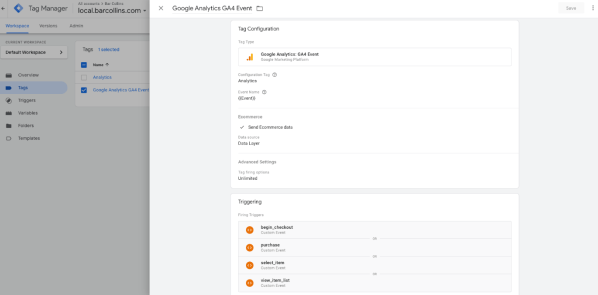
Tip: Remember to tick “Send Ecommerce data”
Below is an example of a Tag set up to receive ecommerce data into Google Analytics.
—-
Custom Booking Flows
Below is an example of how the event looks when sent to Google Tag Manager. If you have your own custom booking process we recommend matching the below to ensure your data in Analytics will be consistent.
{
“event”: “purchase”,
“ecommerce”: { “currency”: “GBP”,
“value”: 0,
“items”: [ { “item_id”: “{VenueID}_{BookingTypeID}”,
“item_category”: “Access Collins”,
“item_brand”: “Venue Name”,
“item_name”: “Booking Type Name”,
“price”: 0,
“quantity”: 2
}
]
}
}
Please see this Measure Ecommerce guide from Google for more information
 Access Collins News